Table of Contents
RustleFlow is a batch file organizer for desktop and Android. It supports Clean, Rename, Transfer, and Sync. This guide follows the actual UI workflow so you can complete tasks step by step.
Table of Contents
- Install & Launch
- UI Overview
- General Workflow
- Filter Reference
- Task: Clean / Delete
- Task: Batch Rename
- Task: Copy / Move
- Task: Sync / Backup
- Preferences & About
- Android Notes
- Step-by-Step Examples
- Notes & FAQ
Install & Launch
Desktop (Windows / macOS / Linux)
- Open the cloud drive link above and download the installation package for the corresponding platform.
- Launch RustleFlow. A window of at least 900×900 is recommended for the four-section workflow.
- Language follows the system by default; switch in Preferences → Language.
Android
- Install the APK, or install from a store channel that distributes the AAB build.
- On first launch, grant storage / all-files access or folder browsing will fail.
- The mobile layout matches desktop logic; controls stack vertically on small screens.
UI Overview
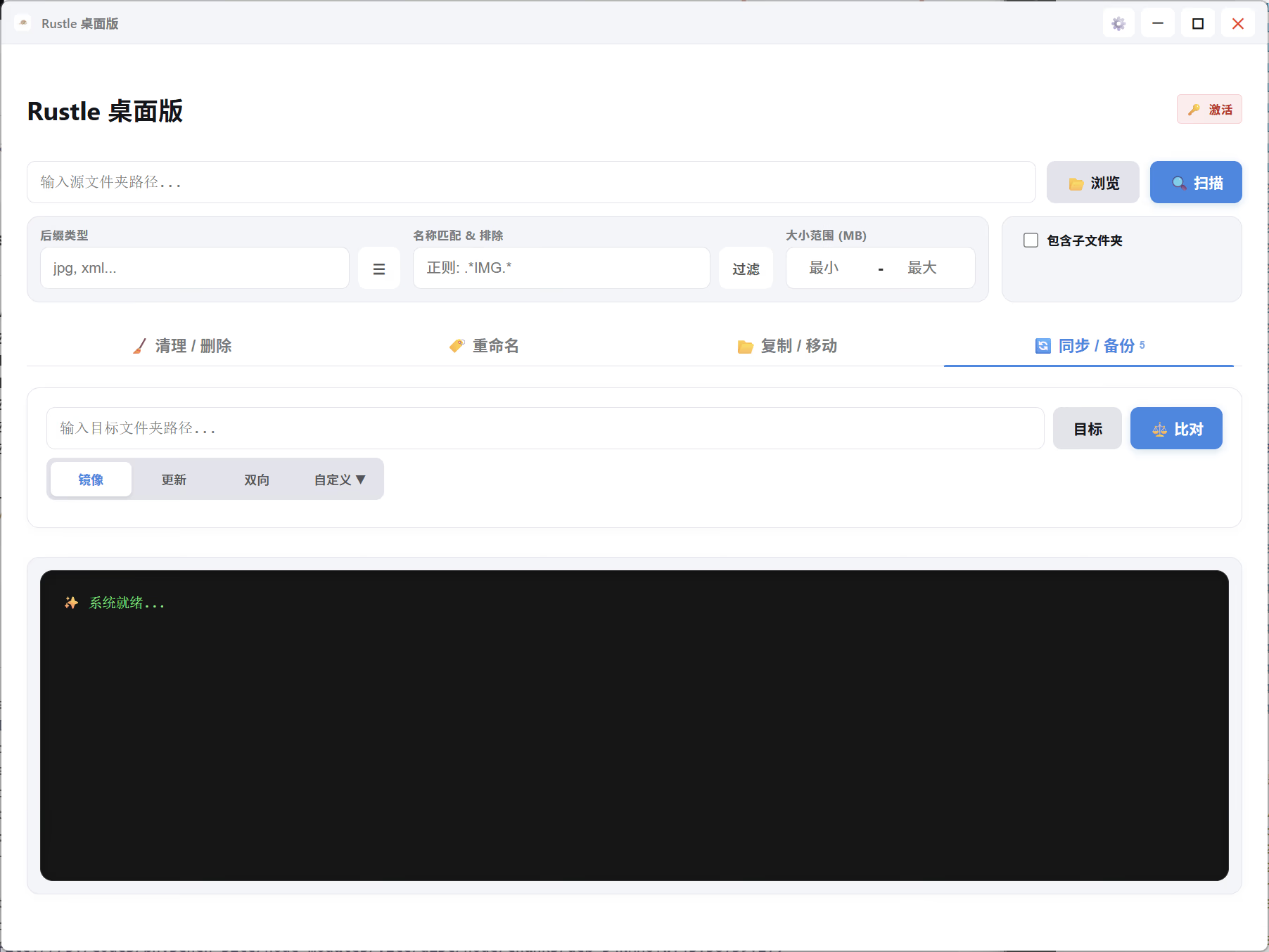
The main screen has four sections — work top to bottom:
| Section | Purpose |
|---|---|
| ① Source | Pick a folder, set filters (extension, regex, size, include/exclude), and scan |
| ② Task type | Switch among Clean / Rename / Transfer / Sync and configure task options |
| ③ Target | Set the destination path (not needed for clean-only tasks), preview, and run |
| ④ Preview & log | Review scan results or previews, select items, read execution logs |
The title bar / toolbar also provides:
- Preferences — undo grace period, theme, custom sync defaults, about documents
- Cancel — stop the current scan or batch job immediately
- Help (mobile) — short notes on filters and task entry points
General Workflow
For every task type, follow this rhythm:
Pick source → Set filters → Choose task type → Configure options
    → Scan or preview → Review & select in terminal → Execute
    → (Optional) Cancel during the progress-bar countdown
Pick a source folder
- Paste a path in the source field, or click 📂 Browse to open the system folder dialog.
- On desktop, the dialog opens at the current field path when valid; otherwise it falls back to the home directory.
- When set, the status bar shows that the source is connected.
Scan
- Configure filters, then click 🔍 Scan.
- Watch progress in the log area; click Cancel to abort.
- Matched files appear in the Preview & log terminal with name, path, and size.
Terminal actions
- Selection — only checked items are processed; use Select all / Select none.
- Load more — paginated results for large lists.
- Clear list — removes the current scan result from the UI only; does not delete files on disk.
Undo & progress bar
Destructive batch operations (delete, rename, move, copy, sync) enter a queued task with a countdown bar:
- Click Cancel before the countdown ends to stop files that have not started yet.
- Duration is set in Preferences → Progress time. 0 seconds skips the buffer.
- After the bar completes, this cancel path no longer applies.
Filter Reference
Filters live in the Source section and apply during scan.
File extensions
- Enter extensions separated by commas, e.g.
jpg, png, raw. - Open the extension panel to pick common categories (images, RAW, video, documents, etc.).
- ★ Save / ⚡ Default — persist the current extension set for the next launch.
Name match (regex)
- Leave empty to skip filename filtering.
- Example:
.*IMG.*matches names containingIMG.
Size range
- Min/max in MB; leave a side empty for no limit on that side.
Include / Exclude rules
Click Include or Exclude to open the rule dialog. Syntax is similar to .gitignore — one rule per line:
| Example | Meaning |
|---|---|
*.tmp | Files ending in .tmp |
temp_* | Names starting with temp_ |
node_modules | A folder named node_modules |
photos/** | Everything under photos/ |
- Include (whitelist) — keep only matching files/folders.
- Exclude (blacklist) — remove matches from results.
- Both can be used together; test on a small folder first to confirm the combined effect.
Other options
| Option | Description |
|---|---|
| Include subfolders | When off, only the current directory level is scanned |
| Move to trash | Send deletions to the system recycle bin when supported |
| Include dot files | Off by default (skips .env, .gitignore, etc.); enabling shows a risk warning |
Task: Clean / Delete
Use for empty folders, temp files, or deleting scan matches.
Steps
- Source — pick a folder; set filters (e.g. extensions
tmp, bakor exclude important paths). - Task type — stay on 🧹 Clean / Delete.
- Scan, review the terminal list, uncheck anything that must not be deleted.
- Run one of:
- 🗑️ Delete N items — delete checked files.
- 🧹 Clean all empty folders — recursively remove empty directories (ignores file checkboxes).
- Cancel during the progress bar if needed.
Notes
- Check filters before delete, especially with dot files enabled.
- When cleaning empty folders, permission-denied paths are skipped and summarized.
Task: Batch Rename
Use for date prefixes on photos or bulk string replacement in filenames.
Steps
- Source — pick a folder and scan (narrow extensions first if needed, e.g.
jpg, raw). - Task type — 🏷️ Rename.
- Choose a mode:
Mode A: Date prefix
| Setting | Description |
|---|---|
| Date format | strftime style, e.g. %Y-%m-%d_; use the panel to insert Y/M/D tokens |
| Date source | Smart / EXIF original / Modified / Created / EXIF digitized |
| Replace existing date prefix | Whether to overwrite a similar prefix already in the name |
Date source details:
- Smart — EXIF capture time first, then digitized time, EXIF date, modified, created.
- EXIF original —
DateTimeOriginalonly; no EXIF means no date. - Modified / Created — filesystem timestamps.
Mode B: Regex replace
| Setting | Description |
|---|---|
| Find | Text or regex, e.g. IMG_ |
| Replace with | Replacement text |
- Click 👁️ Preview and review Original → New in the terminal.
- Check items to apply, then Confirm / Apply rename.
- Cancel during the progress bar if needed.
Notes
- Run preview before applying renames.
- Name collisions in the same folder may fail or overwrite.
Task: Copy / Move
Use for archiving to backup drives, tidying downloads, or flattening asset folders.
Steps
- Source — pick and scan.
- Task type — 📂 Copy / Move.
- Options:
| Option | Description |
|---|---|
| Copy | Keep sources; create copies at the target |
| Move | Remove files from the source after moving |
| Original structure | Preserve relative folder hierarchy under the target |
| Flatten | Drop all matched files into the target root (no subfolders) |
- Target — path must differ from source.
- Preview source → target mapping.
- Check items, then Start copy or Start move.
Notes
- Move removes files from the source path.
- Flatten mode may overwrite same-named files.
Task: Sync / Backup
Use for keeping two folders aligned across devices or merging updates.
Steps
- Source — left / reference folder.
- Task type — 🔄 Sync / Backup.
- Target — right folder.
- Pick a sync mode, then ⚖️ Compare and review differences in the terminal.
Sync modes
| Mode | Summary |
|---|---|
| Mirror | Right matches left; extra files on the right are deleted |
| Update (incremental) | Copy new files from left to right; does not delete extras on the right |
| Two-way | Merge both sides; newer wins on conflict |
| Custom | Per conflict type: left-only, right-only, left newer, right newer |
In Custom mode, each conflict type can be handled separately (e.g. left-only → copy to right / delete left / skip). Preferences → Custom sync defaults sets the initial panel when you open Custom.
- Check diff rows, then 🚀 Execute sync.
- Mirror and Two-way modify or delete files on the target side — confirm paths before running.
Preferences & About
Open Preferences from the title bar / toolbar:
| Setting | Description |
|---|---|
| Progress time | Cancel window for batch jobs (seconds); 0 disables the buffer |
| Default theme | Light / Dark / System |
| Custom sync defaults | Default conflict actions for Sync → Custom |
| Language | 中文 / English |
| About | Changelog, privacy policy, disclaimer, user guide |
About documents open in an in-app panel and work offline (content matches the installed version).
Android Notes
- Permissions — if prompted, open settings and grant all-files or equivalent access, then return to the app.
- Folder picker — browse level by level; inaccessible paths offer retry or go up.
- Layout — same four sections as desktop; filters use full-screen or bottom sheets.
- Performance — keep the app in the foreground during large scans to avoid the OS killing the task.
Step-by-Step Examples
Example 1: Extract RAW and video from a card
Goal: Copy only RAW and MOV; skip JPG thumbnails.
- Source → card root or
DCIM. - Include:
 *.RAW
 *.raw
 *.MOV
*.mov- Exclude:
*.JPG,*.THM(adjust as needed). - Task → Copy / Move → Copy, Original structure.
- Target → archive folder on disk.
- Scan → Preview → select → Start copy.
Example 2: Archive PSD sources after a project
- Source → project folder; extensions
psd,aior use the extension panel. - Task → Rename → date prefix
%Y%m%d_, date source EXIF original or Modified. - Scan → Preview → Execute.
- Switch to Transfer → backup drive → Preview → Start copy.
Example 3: Clean temp files but protect work folders
- Source → drive or parent folder.
- Exclude example:
 Documents/**
Projects/**- Extensions
tmp,bak,logor a regex for temp names. - Task → Clean → Scan → review carefully → Delete.
- Enable Move to trash when available.
Example 4: Mirror a work folder to a laptop
- Source → desktop
Workfolder. - Task → Sync → Mirror (confirm the right side may be overwritten).
- Target → matching folder on the laptop.
- Compare → review deletes/copies → Execute sync.
Notes & FAQ
Operation notes
- Test new rules on a subfolder first.
- Use preview for rename, transfer, and sync; verify checkboxes before delete.
- Include dot files matches
.env,.git, and other hidden items. - Mirror sync deletes extra files on the target.
- Progress time
0disables the cancel window.
FAQ
Q: Scan returns nothing?
Check the path, filters (overly strict include rules, typos in extensions, size range), and whether subfolders are disabled.
Q: Rename preview shows 0 changes?
No matching files, or the chosen date source has no data (e.g. EXIF original on non-EXIF files).
Q: Source and target cannot be the same?
Transfer and sync require different left/right paths.
Q: Android cannot list a folder?
Check storage permission; some system paths are sandboxed — pick an accessible location.
Q: How to report bugs or request features?
Email support@physchen.com or use the survey links in Preferences.